RunCloud AI Monitoring continuously analyzes your server to detect anomalies and their severity, diagnose root causes, and surface remediation steps you can act on immediately.
Note: As AI Monitoring is still in beta, we recommend enabling it on test or non-production servers first. We’re actively refining data handling and privacy documentation, which will be published ahead of general availability.
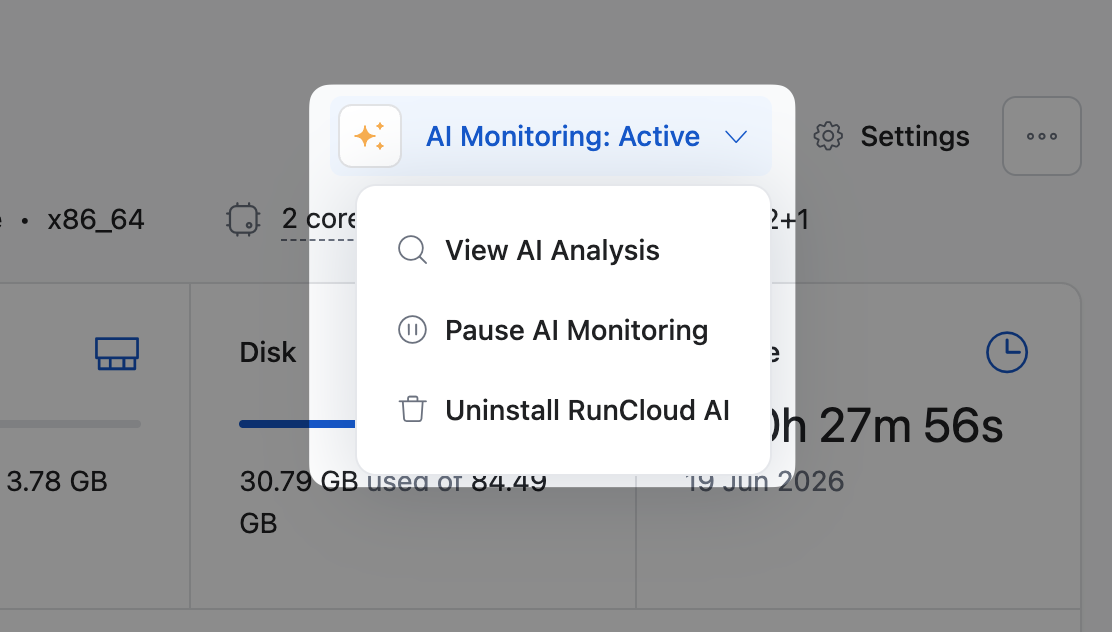
How It Works
-
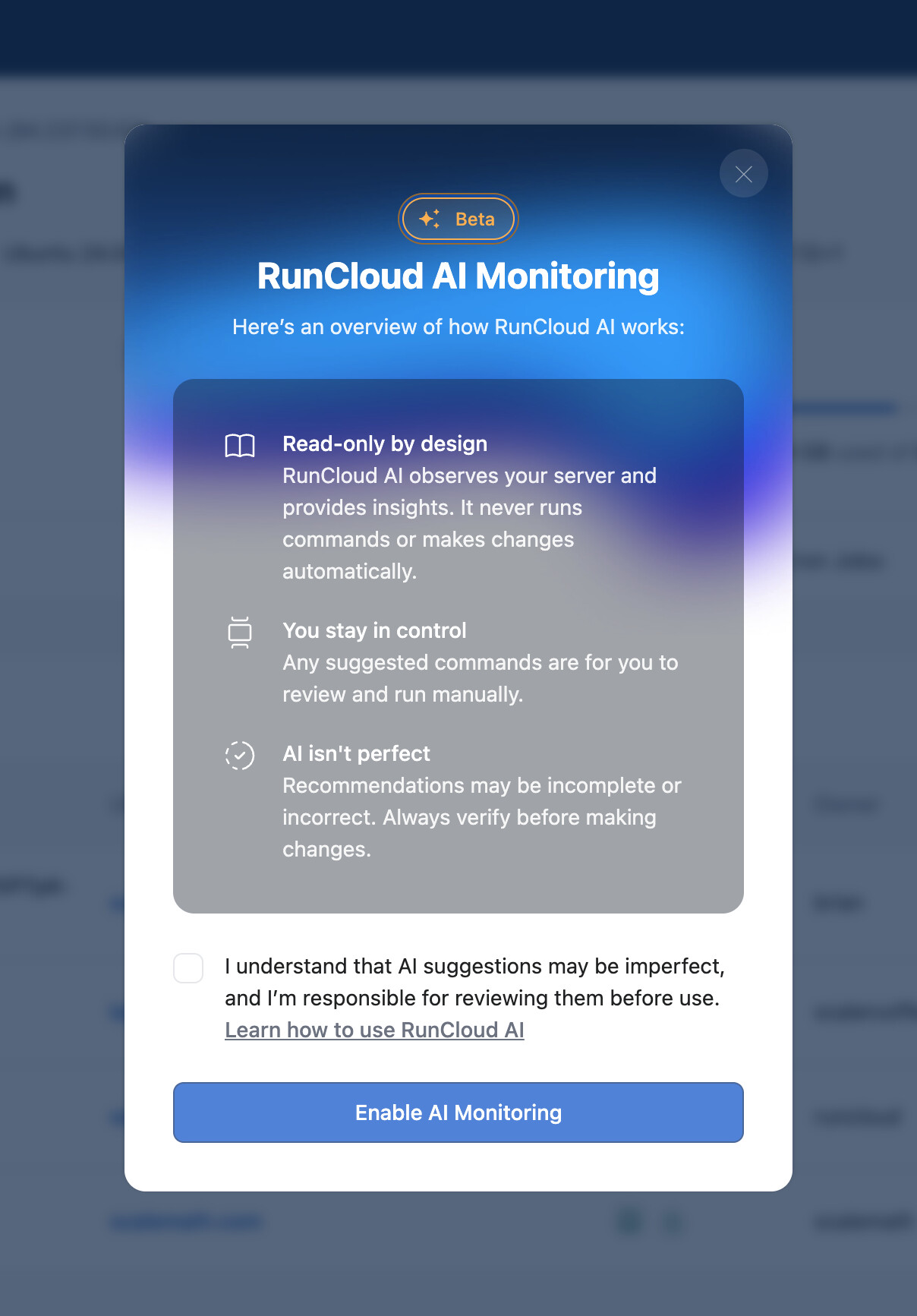
Read-only by design. RunCloud AI observes your server and provides insights. It never runs commands or makes changes automatically.
-
You stay in control. Any suggested commands & next steps are for you to review and run manually.
-
AI isn’t perfect. Recommendations may be incomplete or incorrect. Always verify before making changes.
-
incidents you can revisit anytime
Learn more in our documentation →
How to Enable AI Monitoring
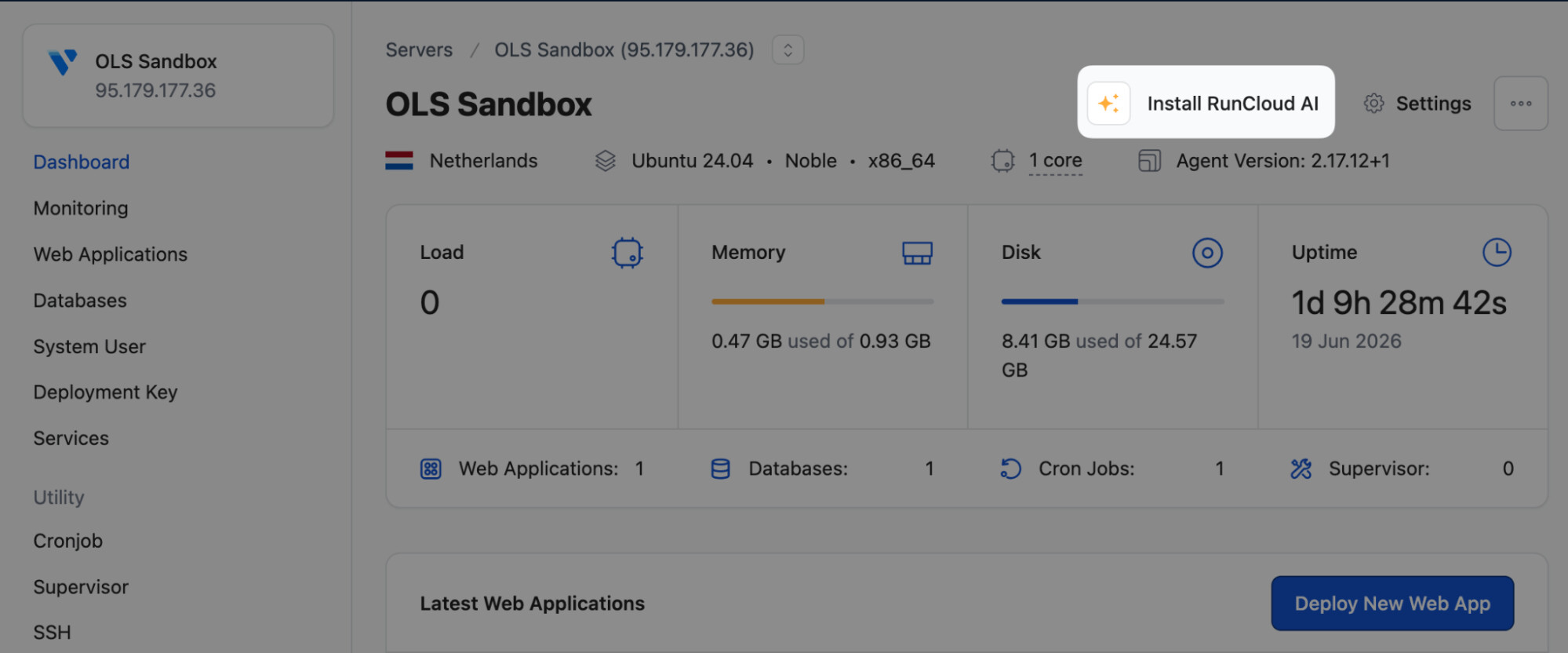
AI Monitoring can be enabled by navigating to your server of choice and looking for the new Install RunCloud AI option, as shown below:
You’ll see a one-time consent modal explaining how RunCloud works. Accept the terms, and then click Enable AI Monitoring to enable AI Monitoring on this server.
This is a beta, so we want your feedback. If you enable it and spot something off (a diagnosis that missed the mark, a remediation step that didn’t work, a use case we should cover), drop a reply here. We look forward to any & all feedback. 
